


Prudential
FOR PRUDENTIAL STAFF

USER GUIDELINE HEALTH CHECK-UP BOOKING PAGE

Scroll to continue

USER GUIDELINE HEALTH CHECK-UP BOOKING PAGE

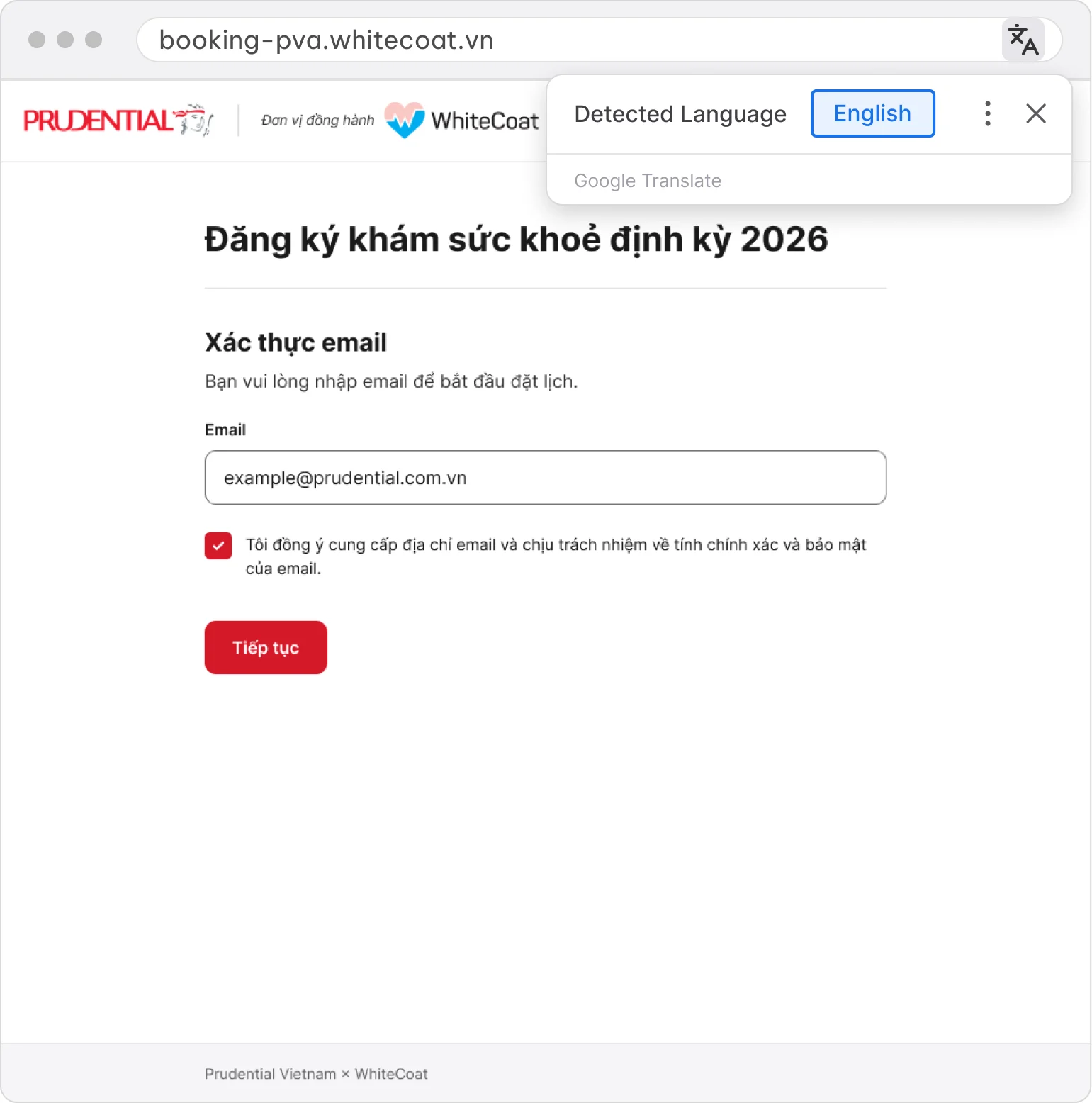
Before you start: Translate the page

For the best experience, open the booking page below in a browser on a computer.

booking-pva.whitecoat.vn
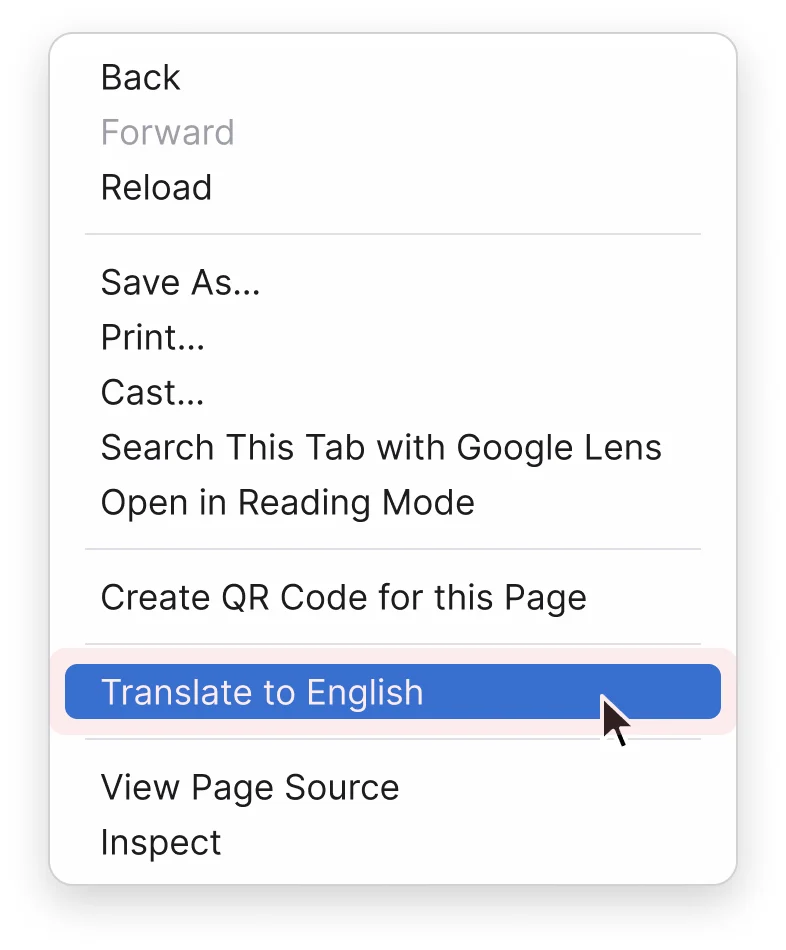
  1. Right-click anywhere on the page, then select Translate to English.

    Note: If the page does not translate, please refresh the page and try again.

  2. You can also select the Translate icon on the right of the address bar, then select English.
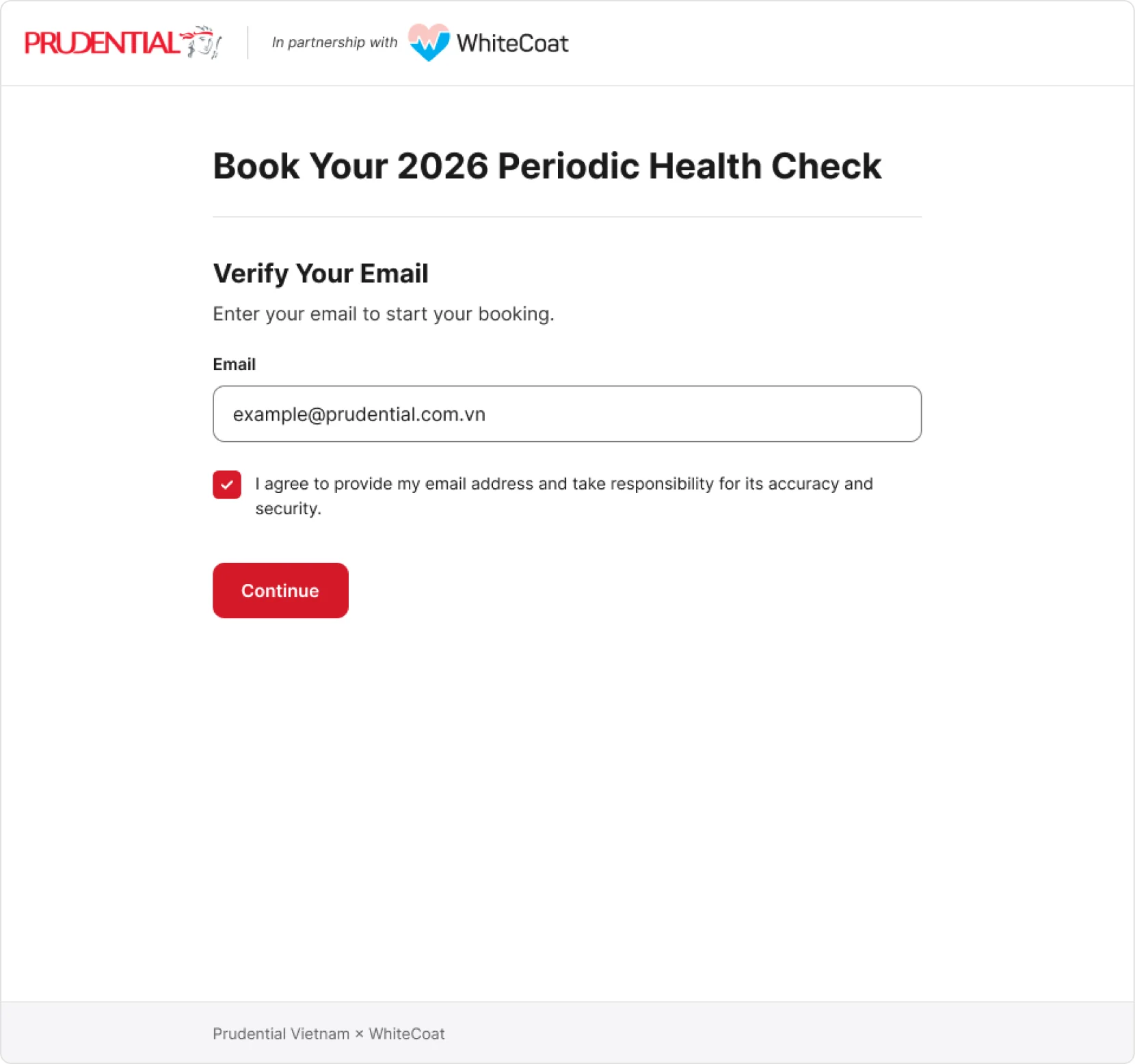
Step 1: Enter your email

  1. Enter your email ending in @prudential.com.vn.

  2. Tick the box to agree to share your email.

  3. Select Continue. The system sends a one-time password (OTP) to your email.

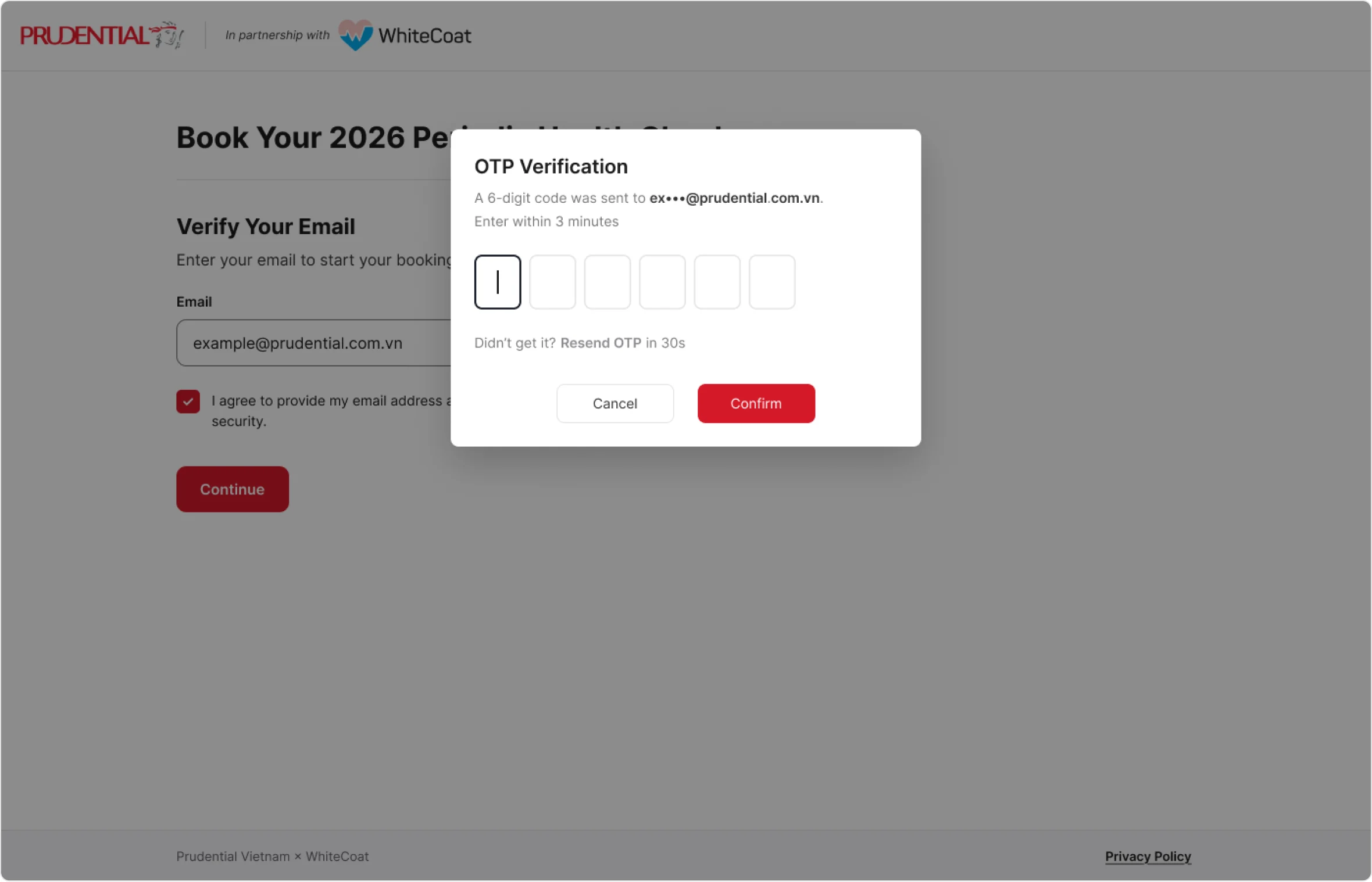
Step 2: Verify the OTP

Open your Prudential mailbox and find the email with the 6-digit OTP.

  1. Enter the 6-digit code from the email.

    Note: Each OTP is valid for 3 minutes.

  2. If the code has not arrived, wait 30 seconds, then select Resend OTP.

  3. Select Confirm to open the booking form.

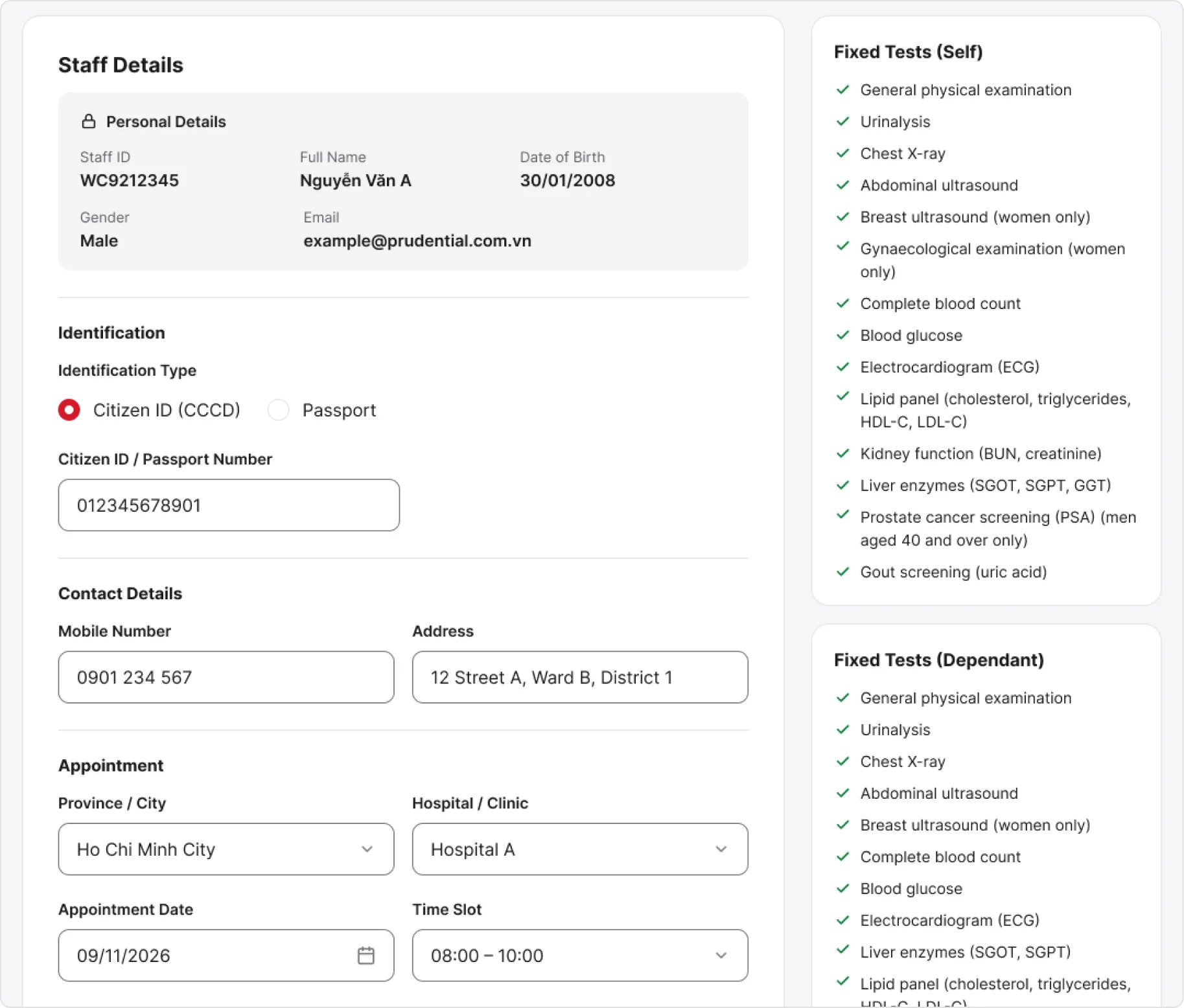
Step 3: Complete your details & schedule an appointment

  1. Check your Personal Details on screen.

    Note: If any of your details are wrong, contact the Prudential project team for help.

  2. Select Citizen ID (CCCD) or Passport, then enter the document number.

  3. Enter your Mobile Number and Address.

  4. Select a Province / City, then a Hospital / Clinic from the list.

  5. Select an Appointment Date and a Time Slot.

    Note: Each time slot has a limited number of places.

Optional

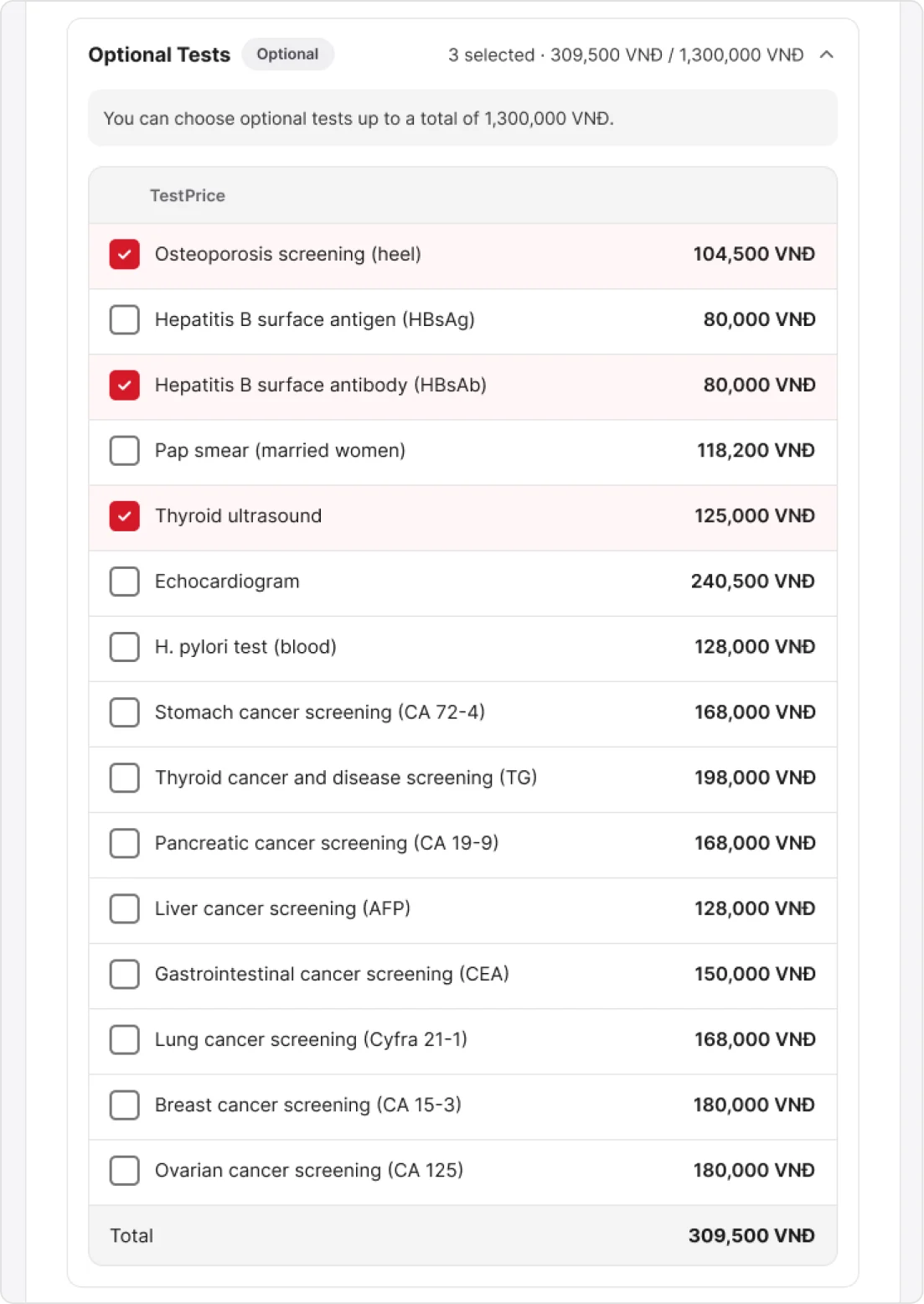
Step 4: Add optional tests

  1. Tick the optional tests you want to add. You can skip this step if you don't need extra tests.

    Note: The total cost of optional tests cannot exceed 1,300,000 VND.

Optional

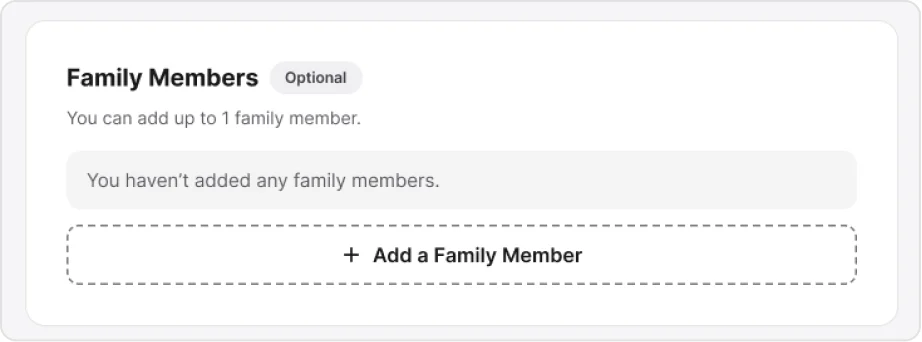
Step 5: Register a family member

  1. Select Add a Family Member to book a check-up for a family member.

    Note: Each staff member can register at most 1 family member.

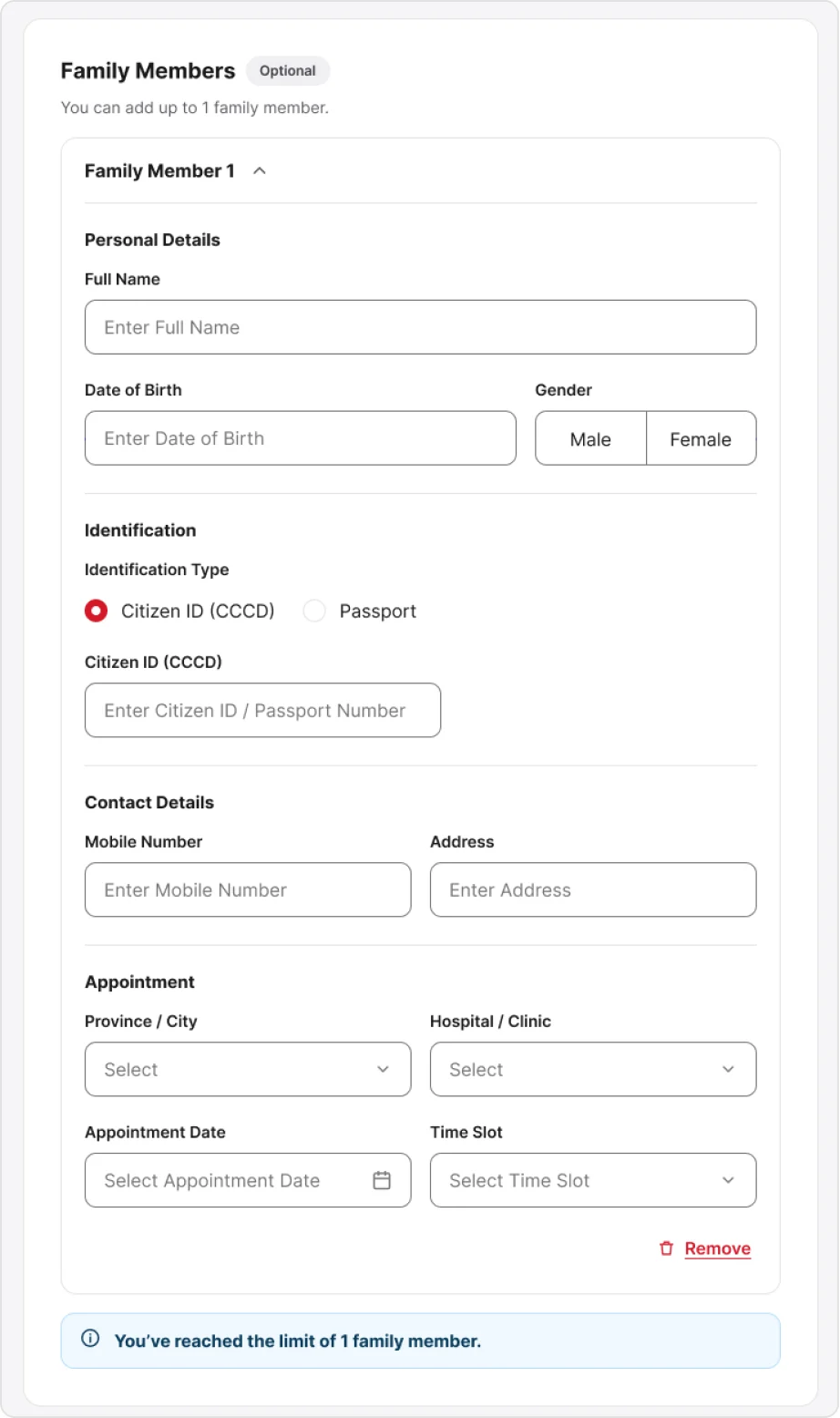
  2. Fill in your family member's Full Name, Date of Birth and Gender.

    Note: Family members must be 18 or older.

  3. Choose an ID type and enter its number, then the mobile number and address.
    Then choose the clinic, date and time slot as in Step 3.

  4. Select Remove to delete your family member's details and appointment.

    Note: After you remove them, the time slot you chose may fill up. You cannot undo this.

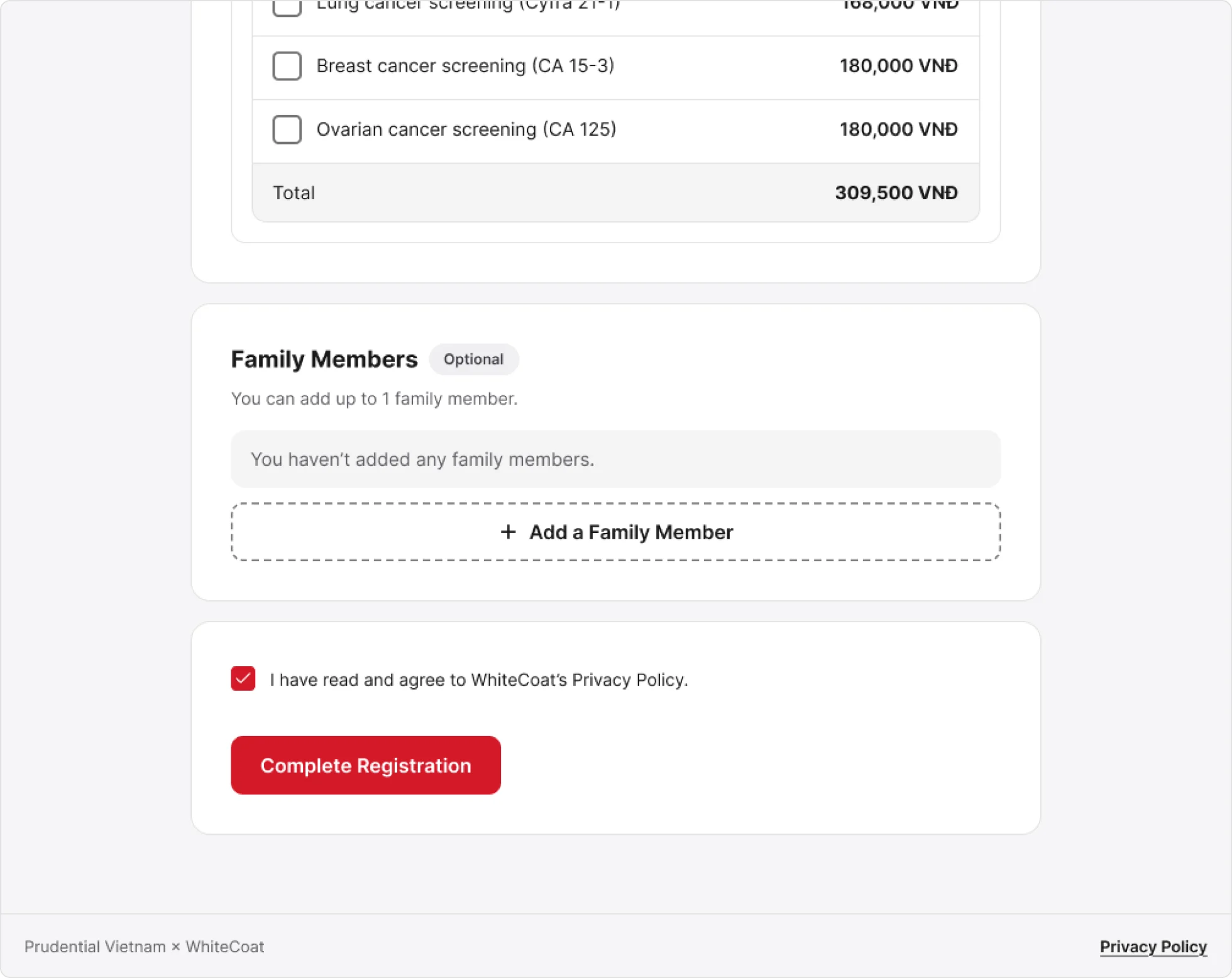
Step 6: Submit your booking

  1. Tick the box to accept the Privacy Policy, then select Complete Registration to finish your booking.

    Note: To read the full policy, select Privacy Policy at the bottom right of the booking page.

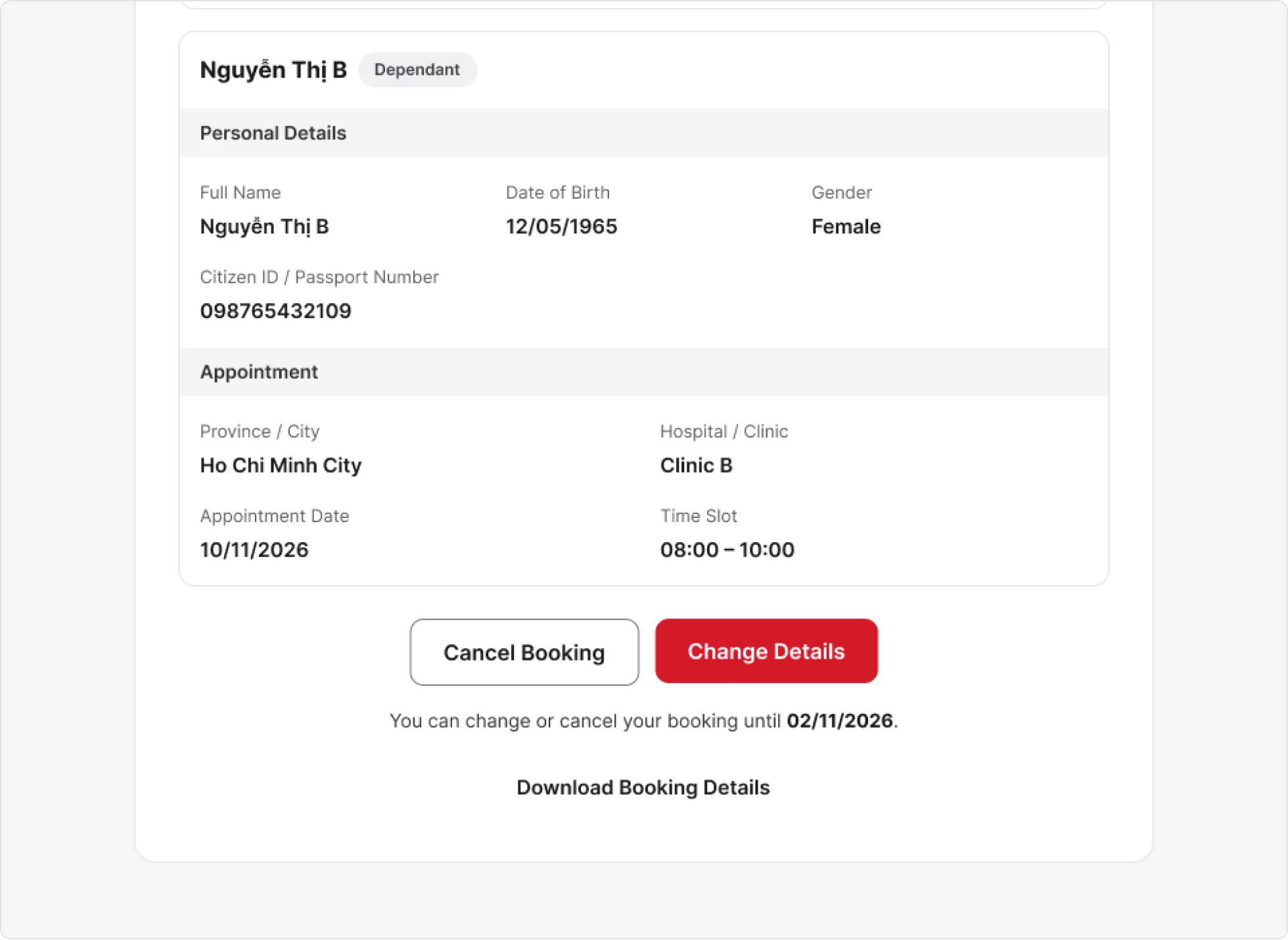
Step 7: View, change or cancel your booking

The system emails the confirmed booking details to you and to your family member (if any).

  1. To change your details, select Change Details. This takes you back to Step 3.

  2. To cancel, select Cancel Booking, then confirm in the pop-up.

    Note: Cancelling your booking also cancels your family member's booking. You cannot undo it.

  3. Select Download Booking Details to save a PDF copy to your device.

You can change or cancel your booking via the link until 13 November 2026.

SUPPORT

Frequently asked questions

Please wait 30 seconds, then select Resend OTP to try again.

Each OTP is valid for 3 minutes only. If you enter a wrong code 3 times, the system locks code entry and you must request a new code.

Each time slot has a limited number of registrations. Please choose another time slot that is still available.

The total may not exceed 1,300,000 VNĐ. The system blocks any test that would take the total over this limit.

Each staff member can register up to 1 family member, who must be 18 or older. The family member receives the 10 fixed tests and cannot choose optional tests.

No. After you select Remove, your family member's details and chosen appointment are deleted and cannot be restored. When you register again, that slot may no longer be available.

You can change or cancel your booking until the date shown on the confirmation page. If you cancel, your family member's booking is cancelled too, and this cannot be undone.

The system sends your booking details to your email. On the confirmation page, you can select Download Booking Details to save a PDF copy.